
5.0″ Wireless CarPlay & Android Auto Dashboard for BMW R1200GS / R1250GS
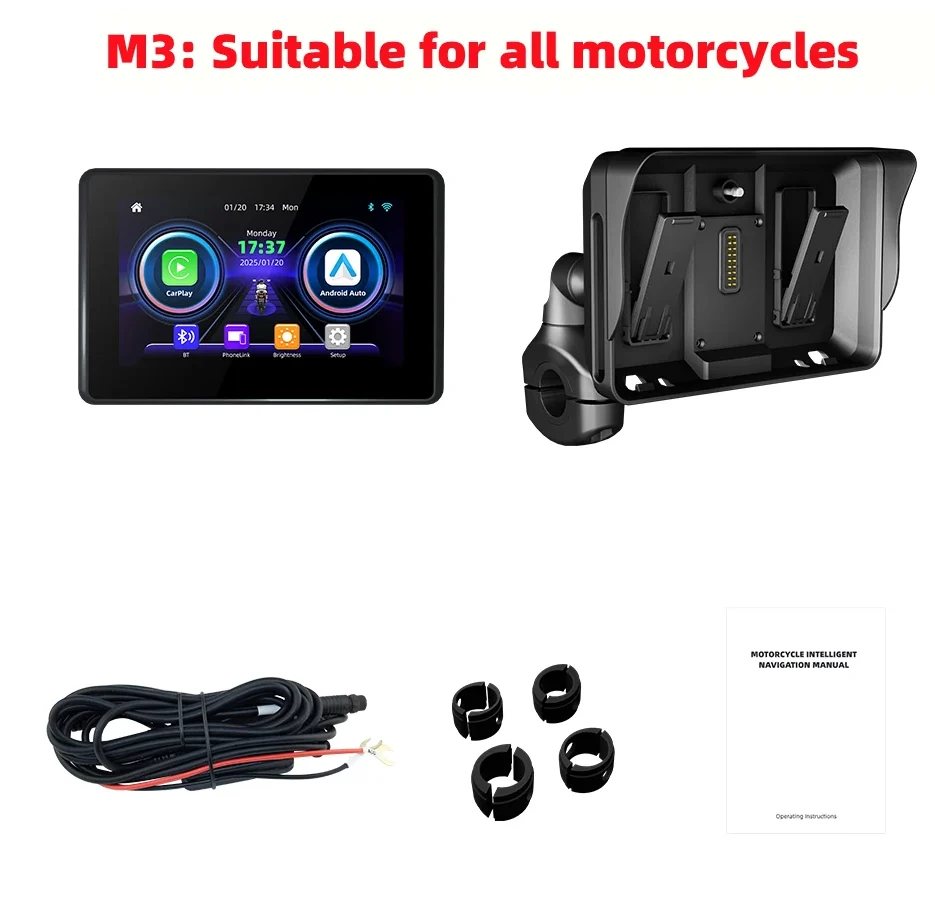
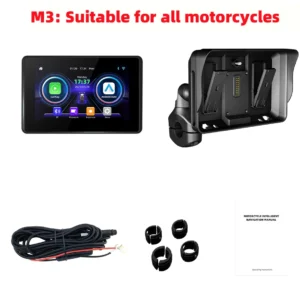
Transform your touring experience with the ultimate Motorcycle CarPlay Screen, specifically engineered for the legendary BMW GS series. Navigating unfamiliar terrain or managing your playlist on the move has never been easier or safer. This 5.0-inch portable digital dashboard brings the power of your smartphone directly to your cockpit, providing a seamless interface for BMW R1250GS GPS Navigation and communication.
Key Features and Benefits of The Motorcycle CarPlay Screen
-
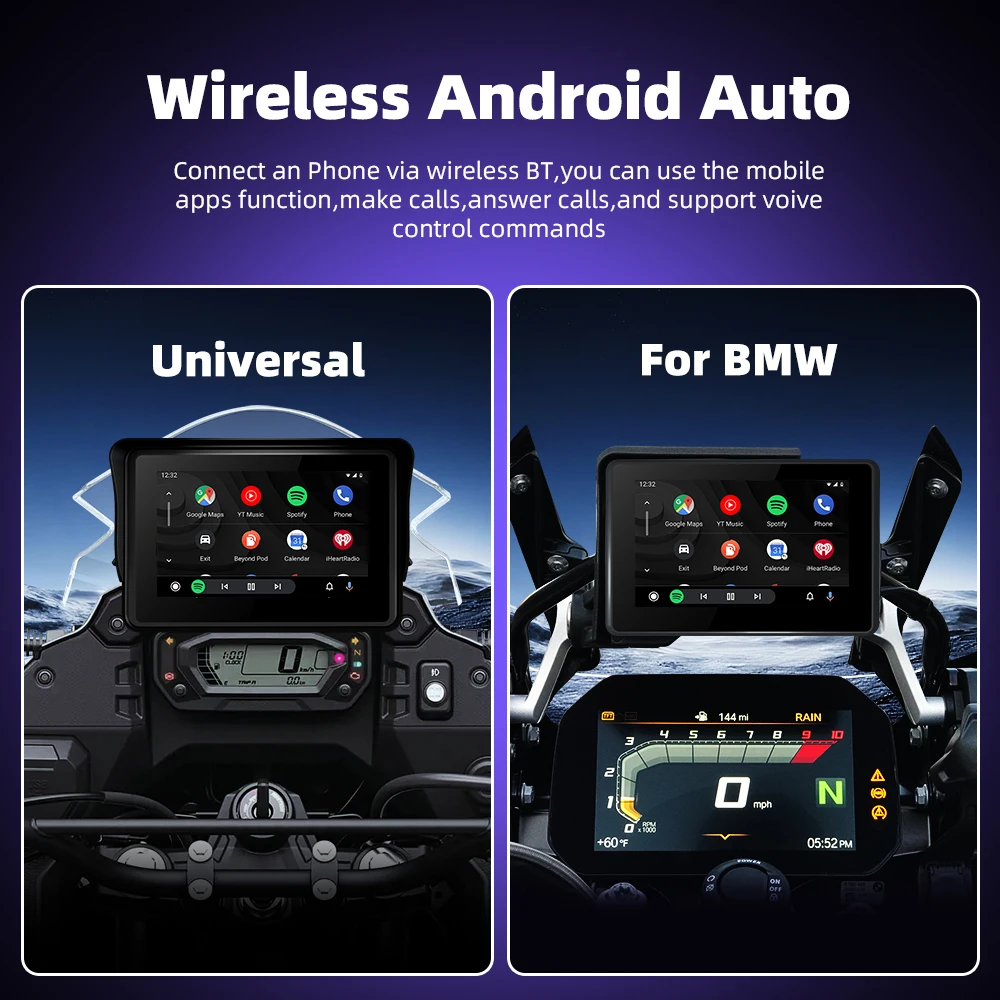
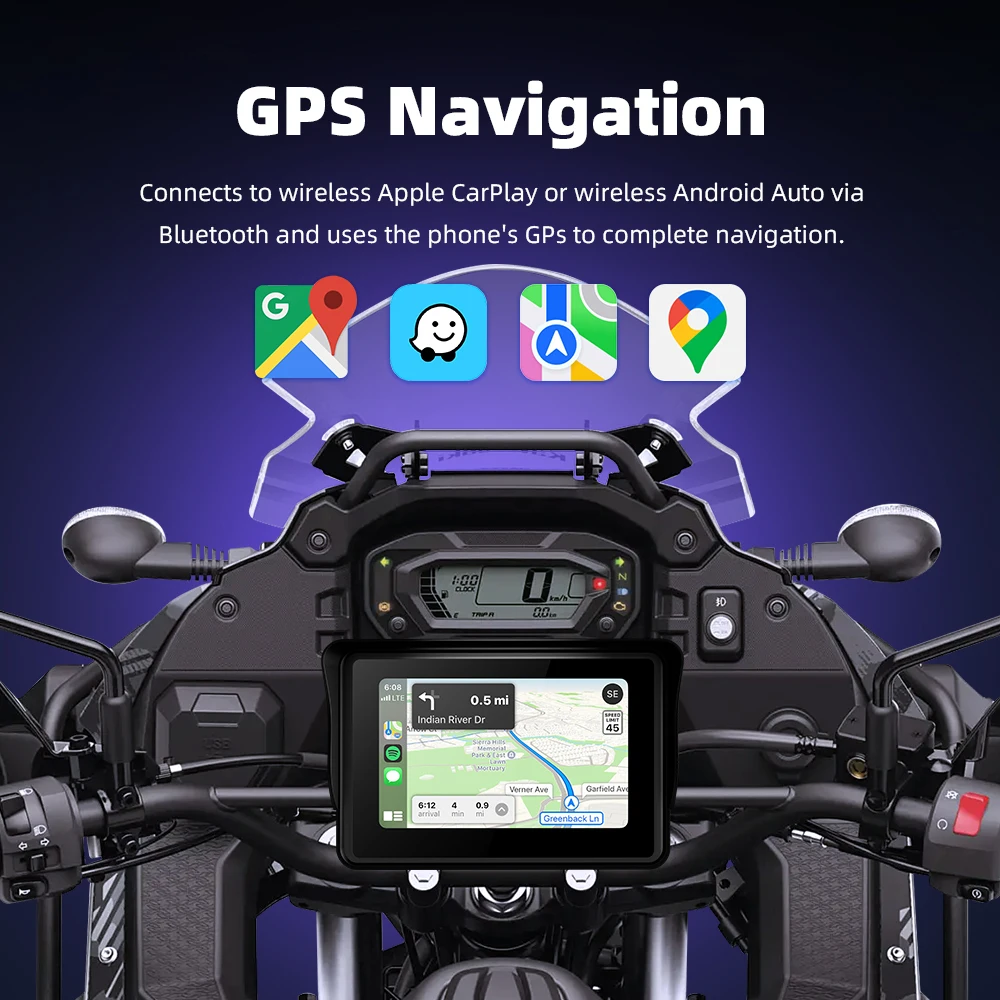
Wireless Smartphone Integration: Supports both Wireless Apple CarPlay (iPhone 6+) and Wireless Android Auto (Android 11+). This allow you to access maps, music, and messages without messy cables.
-
High-Definition Display: Features a 5.0-inch capacitive touch screen with a crisp 1024*600 resolution, ensuring high visibility even in direct sunlight.
-
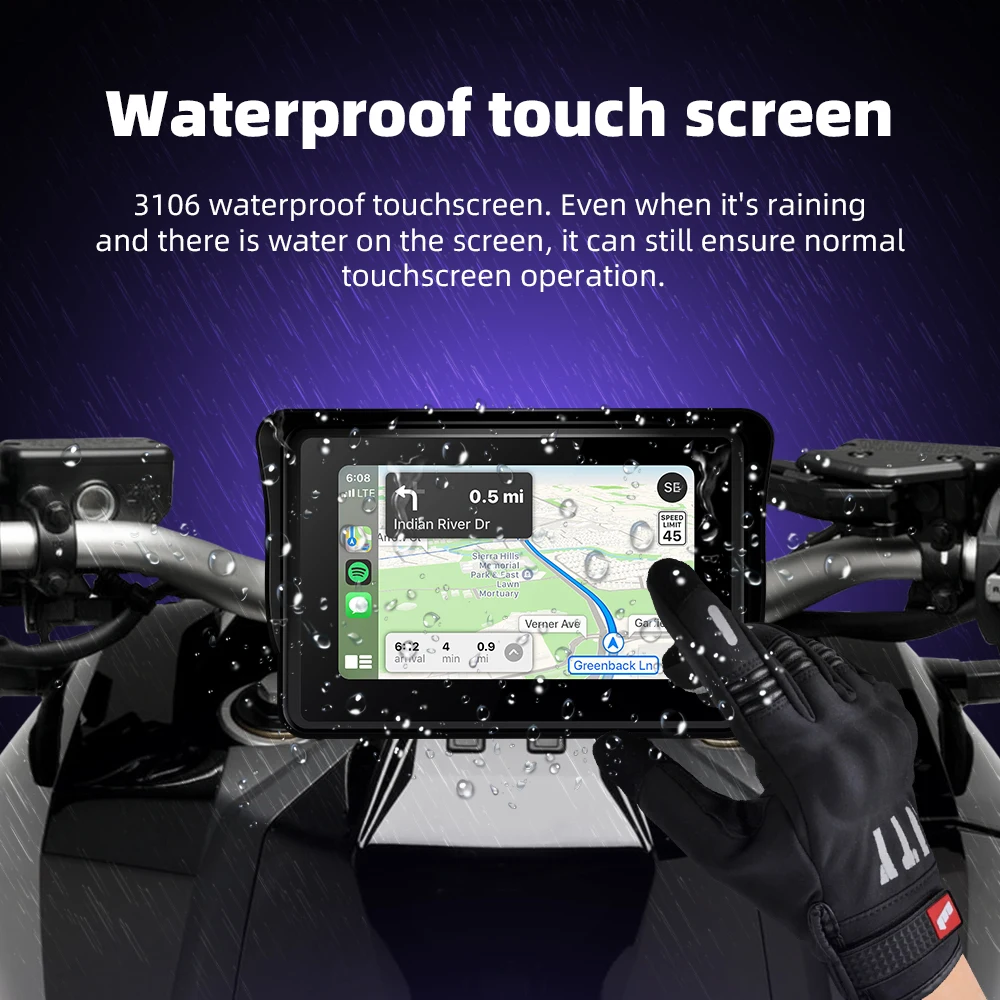
Rugged IP67 Protection: Fully dustproof and waterproof. This unit is built to withstand the harshest ADV environments, from muddy trails to torrential rain.
-
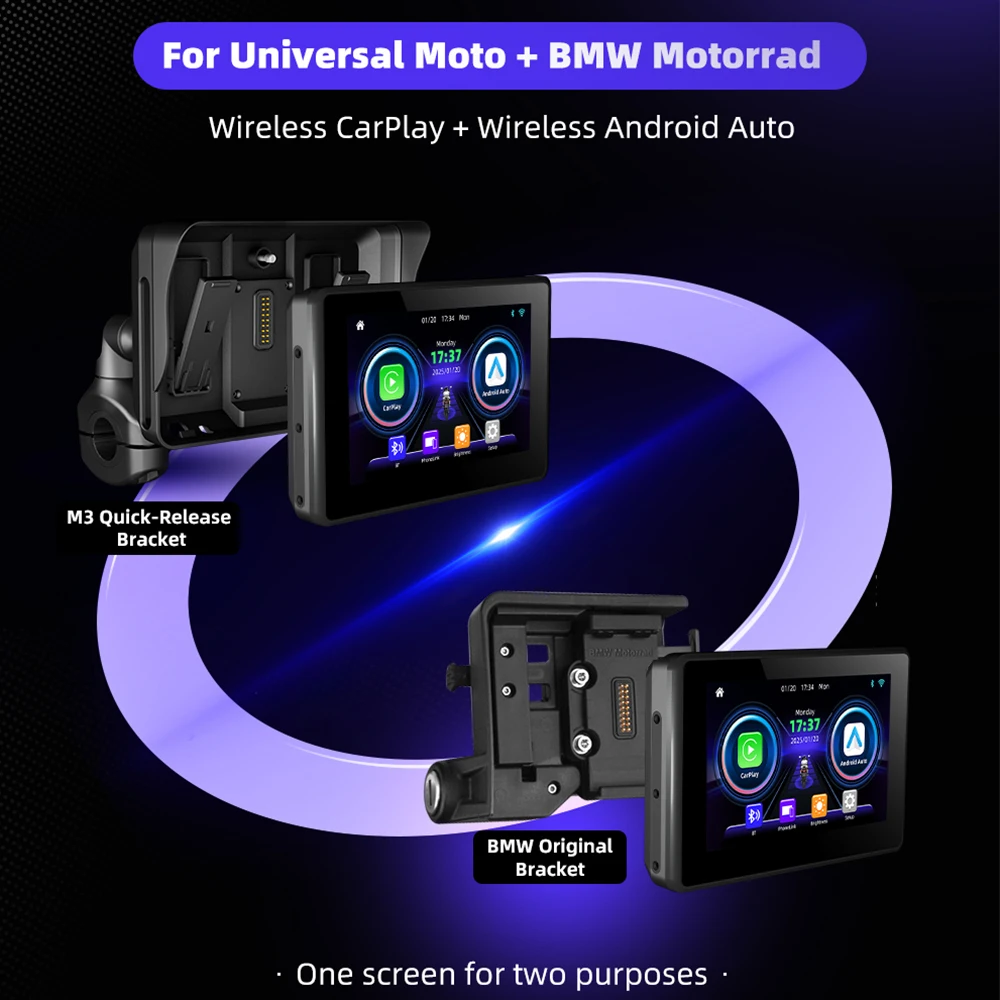
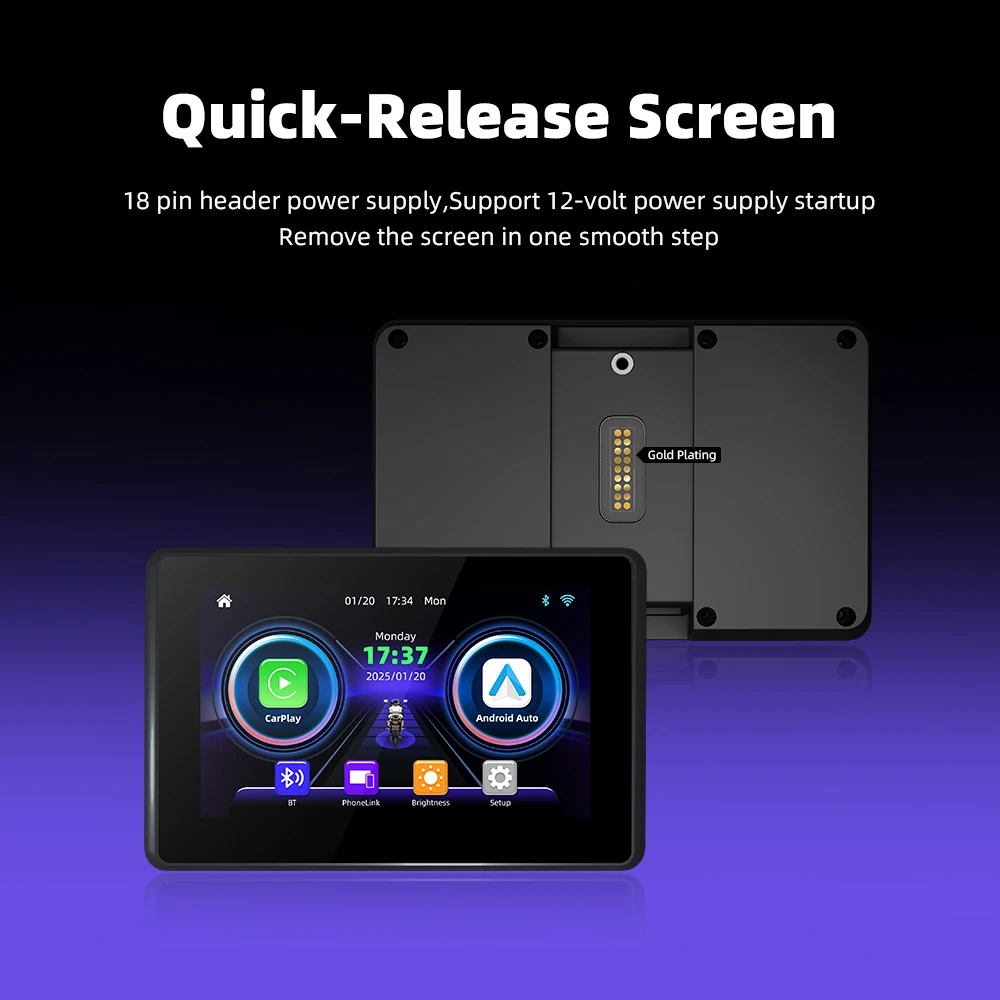
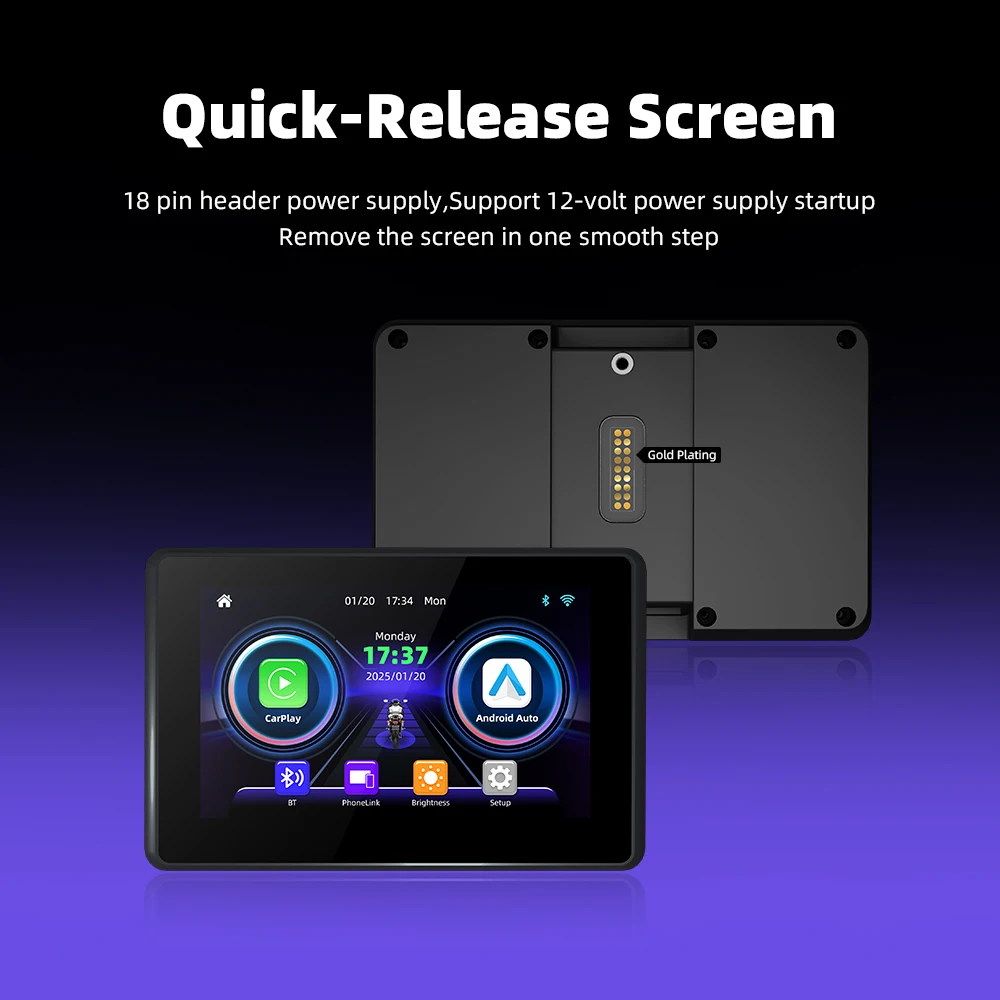
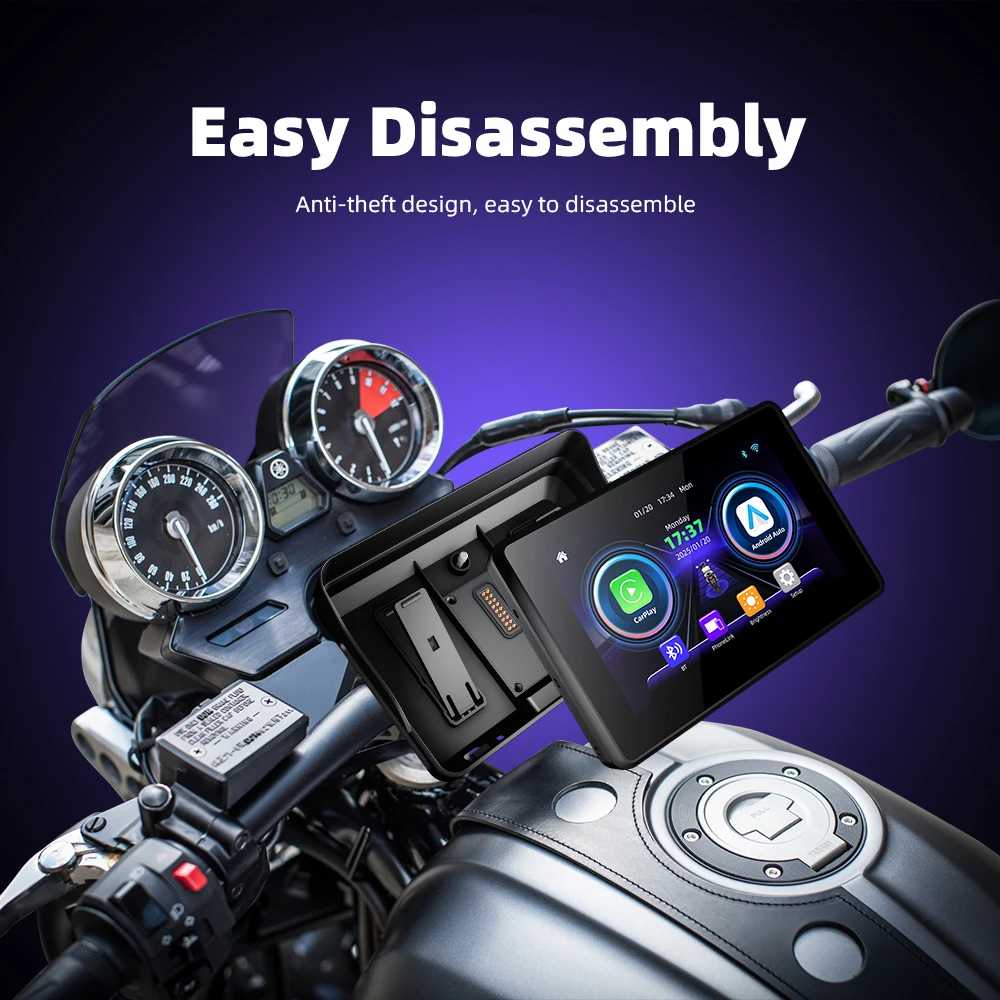
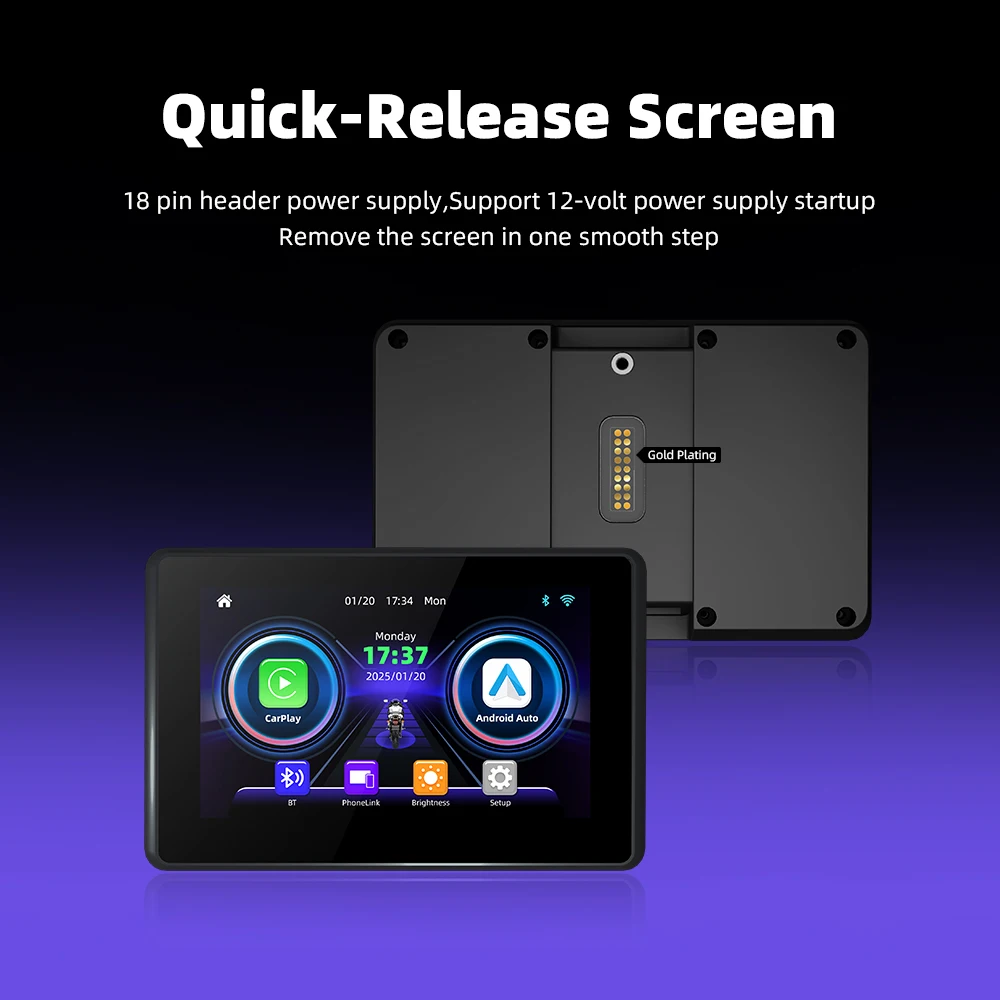
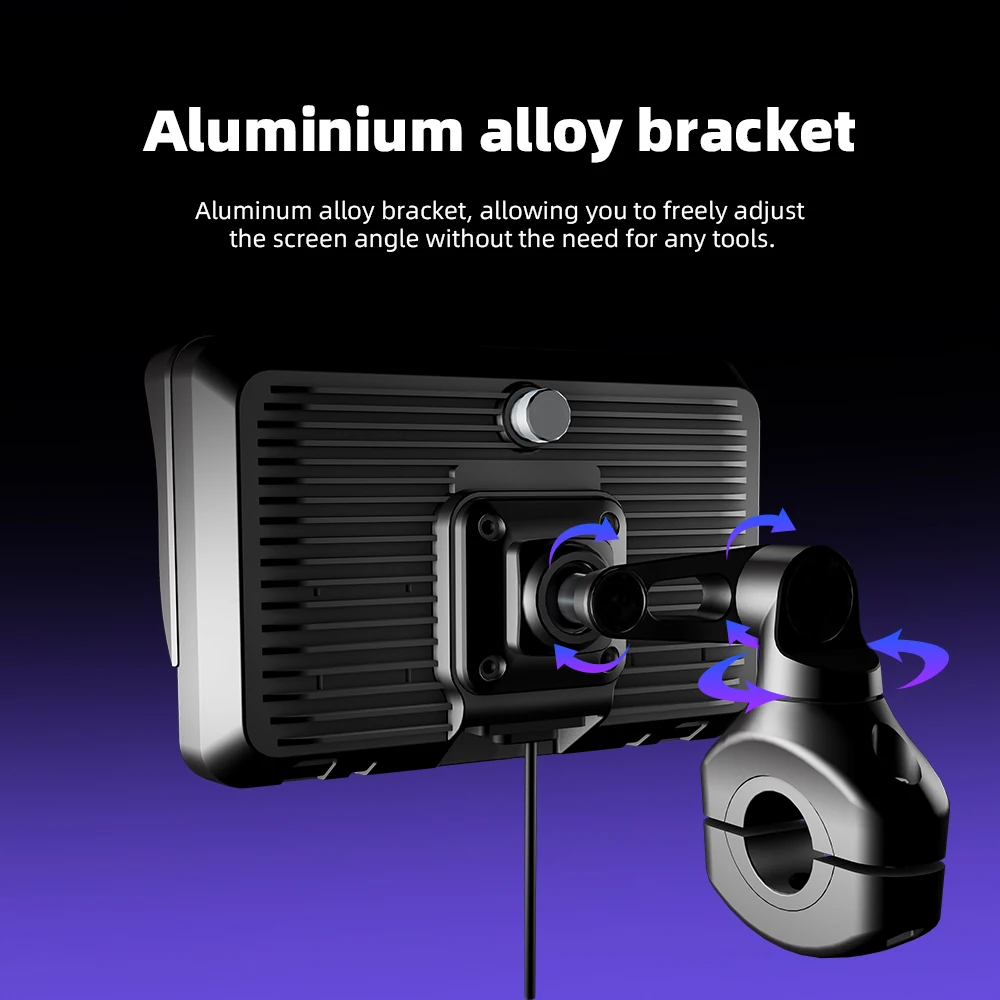
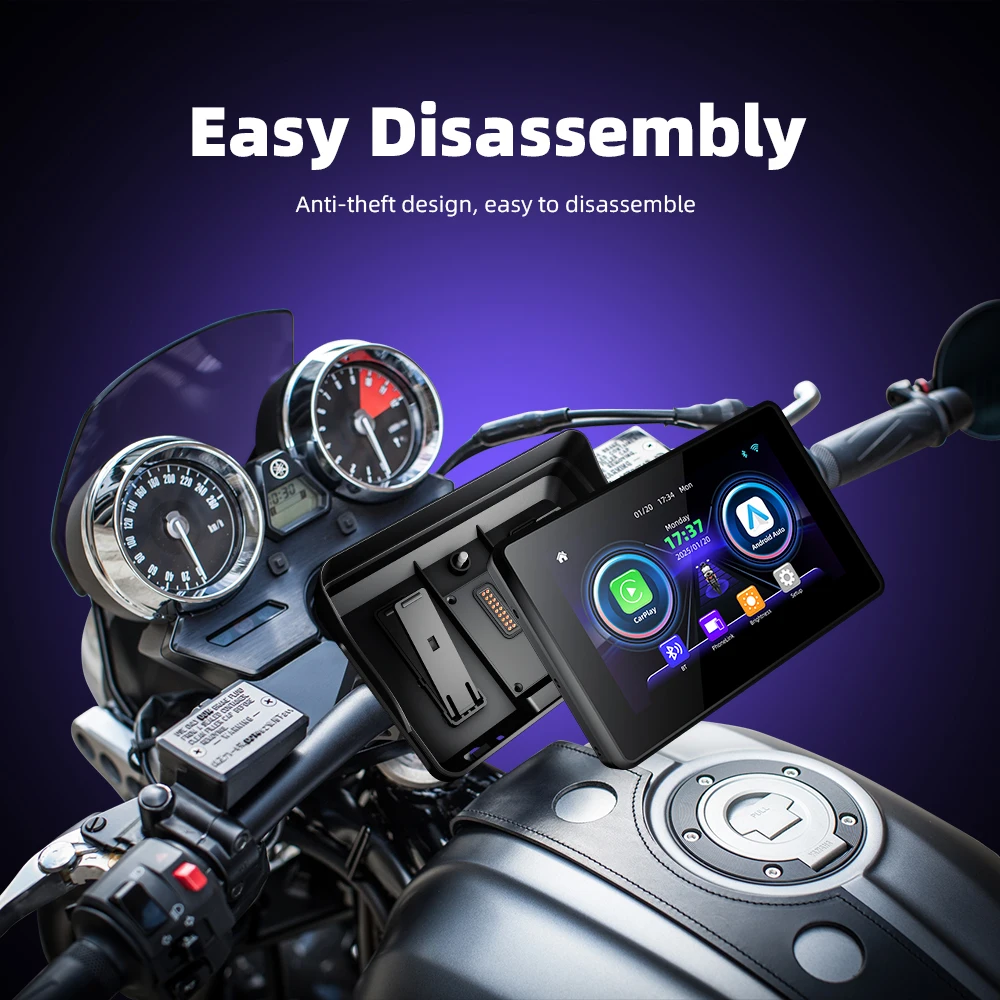
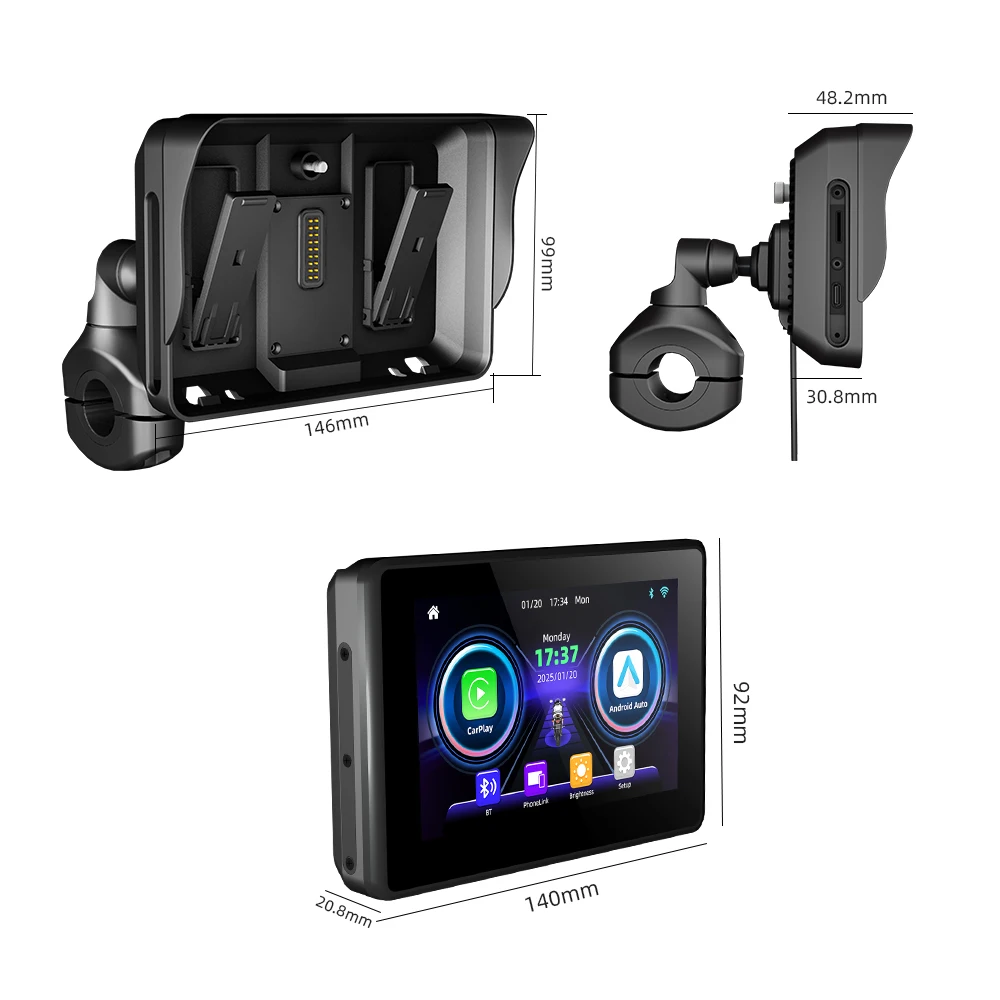
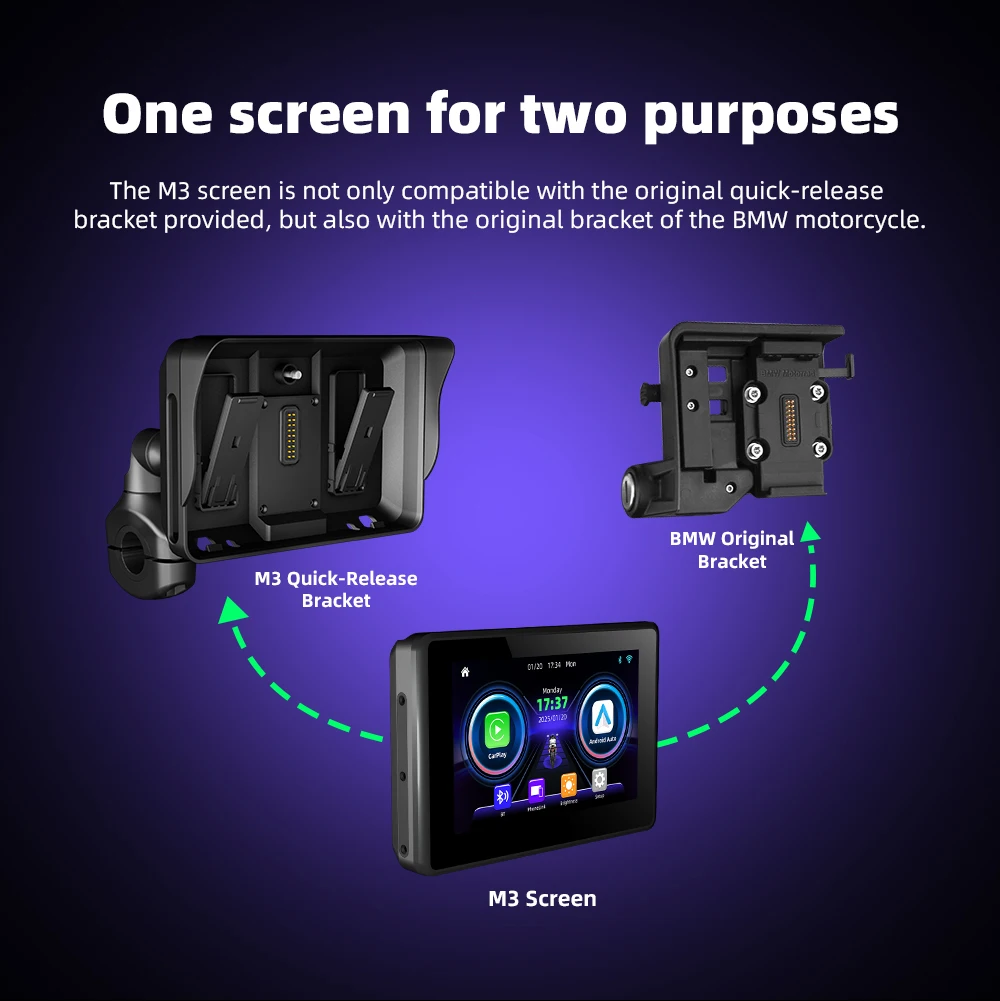
Anti-Theft Detachable Design: The innovative bracket allows you to easily snap the screen off and take it with you when you leave the bike. This provides total security.
-
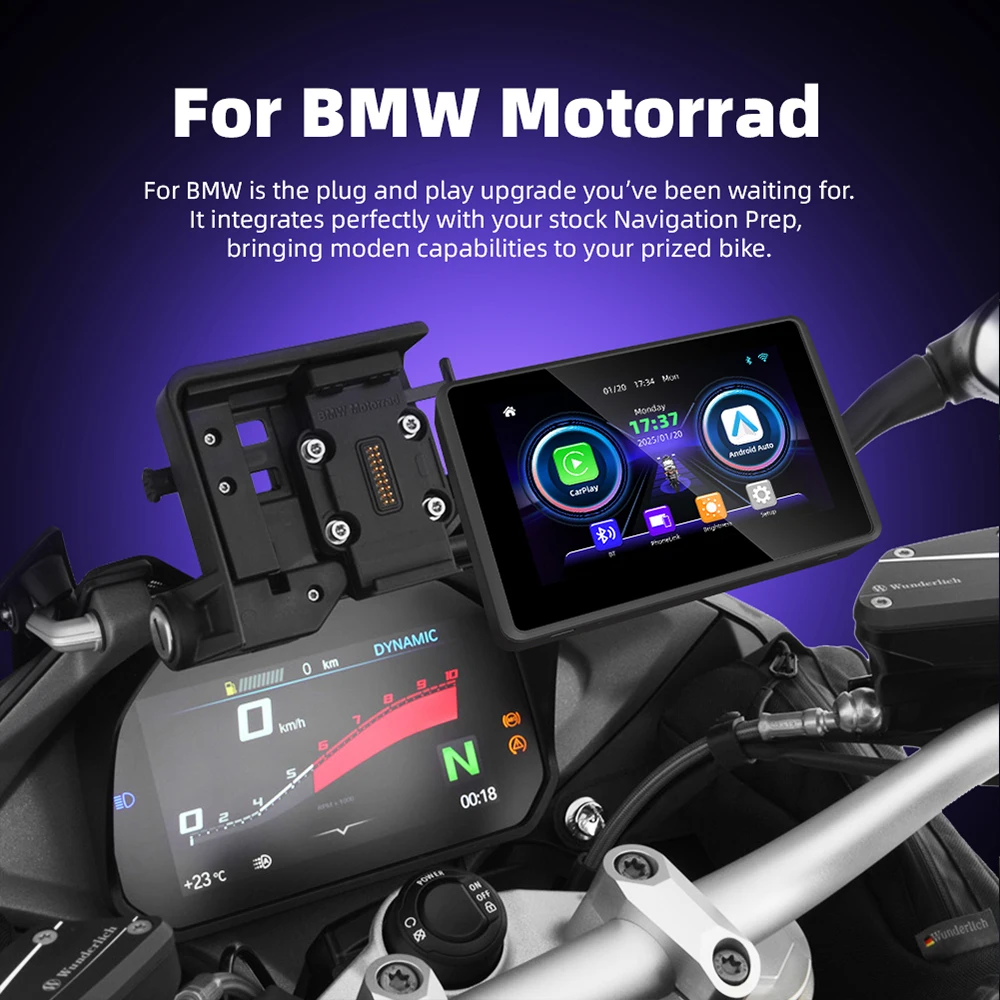
BMW Factory Fitment (M3A): The M3A version is designed to fit perfectly into factory-fitted BMW navigation brackets, maintaining the clean, OEM look of your R1200GS or R1250GS.
-
Linux System Stability: Powered by a dedicated Linux OS, the interface is ultra-responsive, lag-free, and boots up instantly with your bike’s ignition.
-
Extreme Temperature Resilience: Operates flawlessly in environments ranging from -20°C to 70°C, making it suitable for arctic expeditions or desert crossings.
Seamless Connectivity for the Modern Adventurer
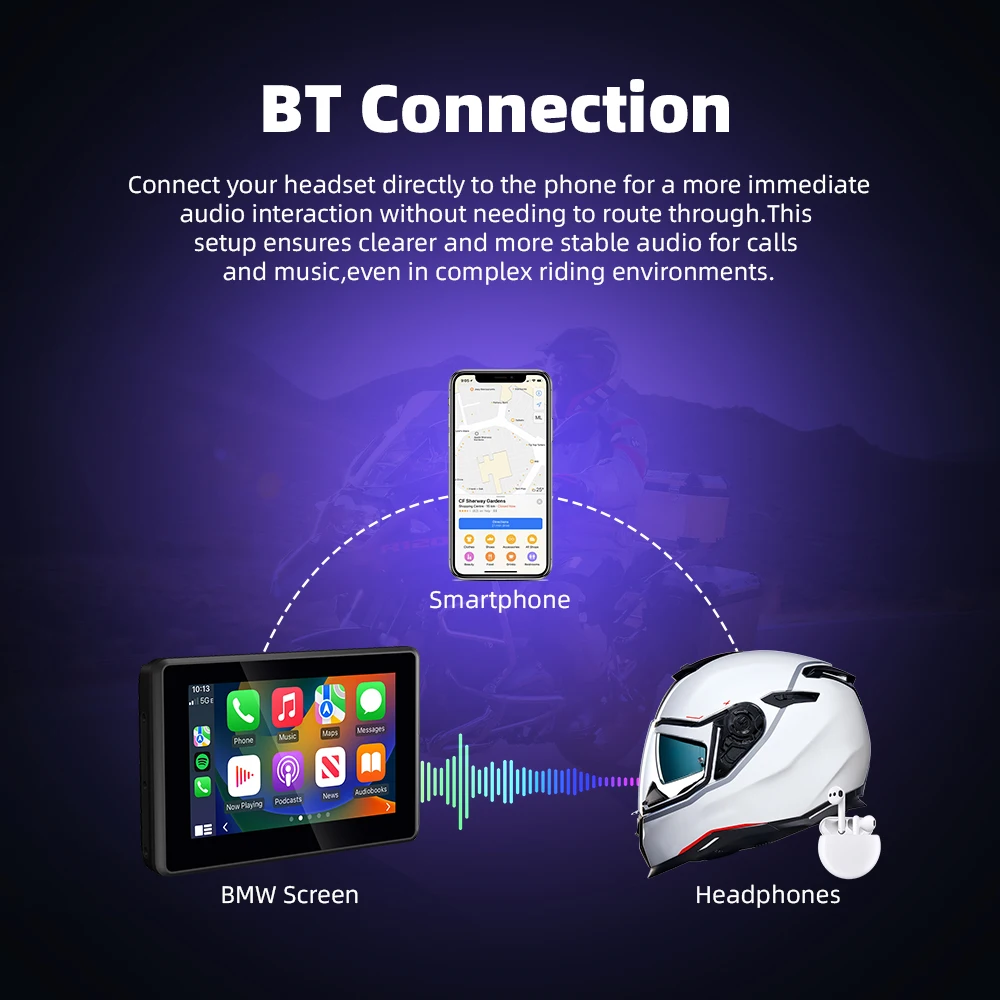
Connectivity is the heart of this device. By utilizing Wireless CarPlay and Android Auto, you can keep your expensive smartphone safely tucked away in your pocket or tank bag while using the dashboard as your primary interface. Consequently, you protect your phone’s camera sensors from high-frequency engine vibrations. Additionally, the multi-language support (including English, Russian, French, and Spanish) ensures a localized experience for riders worldwide.
Built for the BMW GS Lifestyle
Whether you are navigating the backroads of the Alps or commuting through city traffic, this BMW R1250GS GPS Navigation solution offers unparalleled utility. For BMW owners, the M3A model is a game-changer, as it utilizes the existing power and mounting infrastructure of the bike. Furthermore, the capacitive touch screen is sensitive enough to be used with most modern motorcycle gloves, ensuring you never have to stop to adjust your route.
In conclusion, this digital dashboard is not just a screen; it is a comprehensive upgrade to your motorcycle’s technology. By combining a robust build with high-end smartphone integration, it provides the safety, convenience, and modern features that every GS rider deserves.
Specifications of The Motorcycle CarPlay Screen
- Item Type:
- System: Linux
- Wireless Carplay:Support
- Wireless Android Auto:Support
- Dislplay: 5.0 inch screen
- Resolution ratio:1024*600
- Input power supply:12/-0.2V,(MAX15.5V)
- Operating temperature:-20-70℃
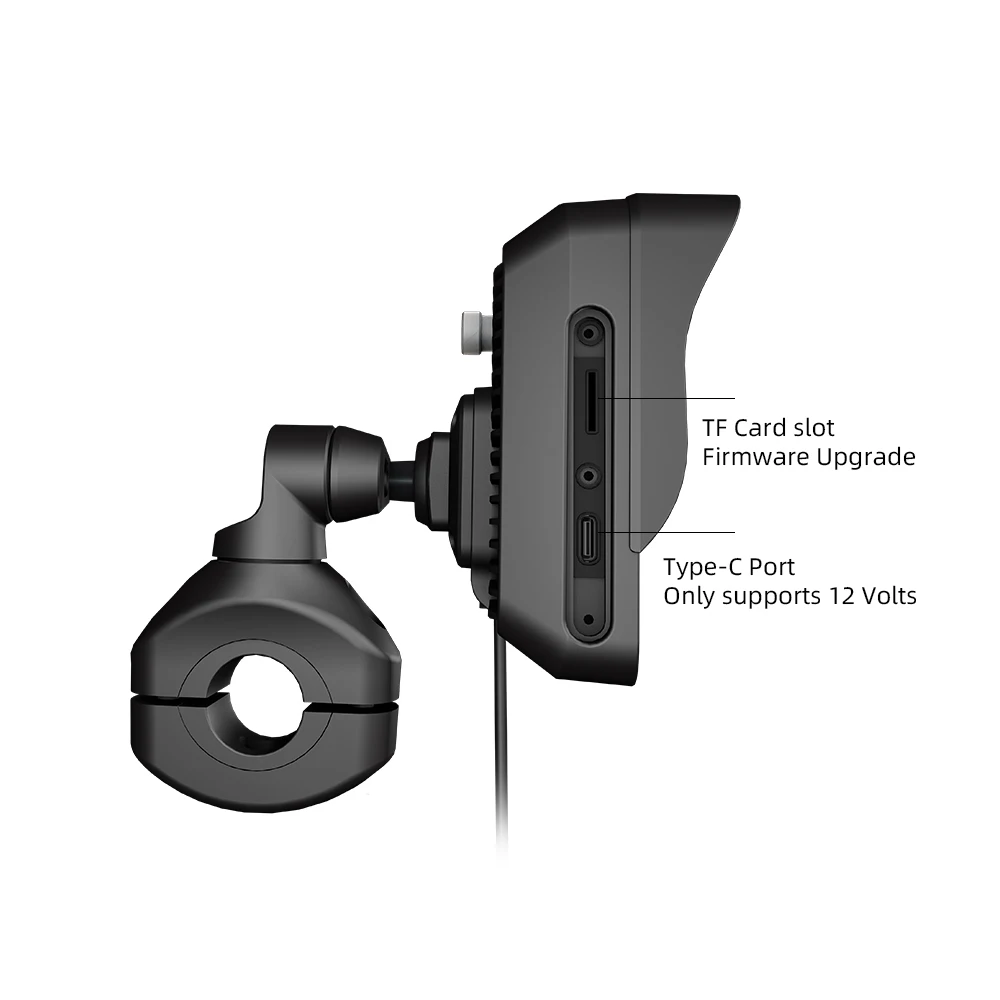
- Input power supply: 12V voltage is required to start
Quick Start: Wireless Connection Guide
Setting up your wireless interface is a one-time process. Once paired, your 5.0″ dashboard will automatically reconnect to your phone every time you start your motorcycle.
1. Pre-Connection Checklist
-
Power Up: Ensure the unit is connected to a 12V power supply. The screen will boot the Linux system automatically.
-
Enable Wireless: Turn on both Bluetooth and Wi-Fi on your smartphone.
-
Compatibility: * iPhone: Requires iPhone 6 or newer.
-
Android: Requires Android 11+ with 5G Wi-Fi capability.
-
2. Pairing Wireless Apple CarPlay
-
On the dashboard home screen, select the CarPlay icon.
-
Open your iPhone’s Bluetooth Settings and look for the device name (usually starting with “BT-XXXX”).
-
Select the device and tap “Pair” when the prompt appears.
-
When asked “Use CarPlay with this device?”, select “Use CarPlay.”
-
Your iPhone will now sync, and the CarPlay interface will appear on the 5.0″ screen.
3. Pairing Wireless Android Auto
-
On the dashboard home screen, select the Android Auto icon.
-
Open your Android phone’s Bluetooth Settings and search for the dashboard’s ID.
-
Tap “Pair” and allow all necessary permissions for contacts and messages.
-
Your phone will automatically establish a 5G Wi-Fi handshake.
-
The Android Auto dashboard (Maps, Spotify, etc.) will launch on the screen.


Reviews
There are no reviews yet.